
Features
Integrations Pricing Developers Guides

Verify your business

Submit your registration for the verified badge.

Account & billing 1 min read 4 steps 1 screenshots

Verification is optional but quick, and it tells buyers a real registered business is behind the checkout.

1

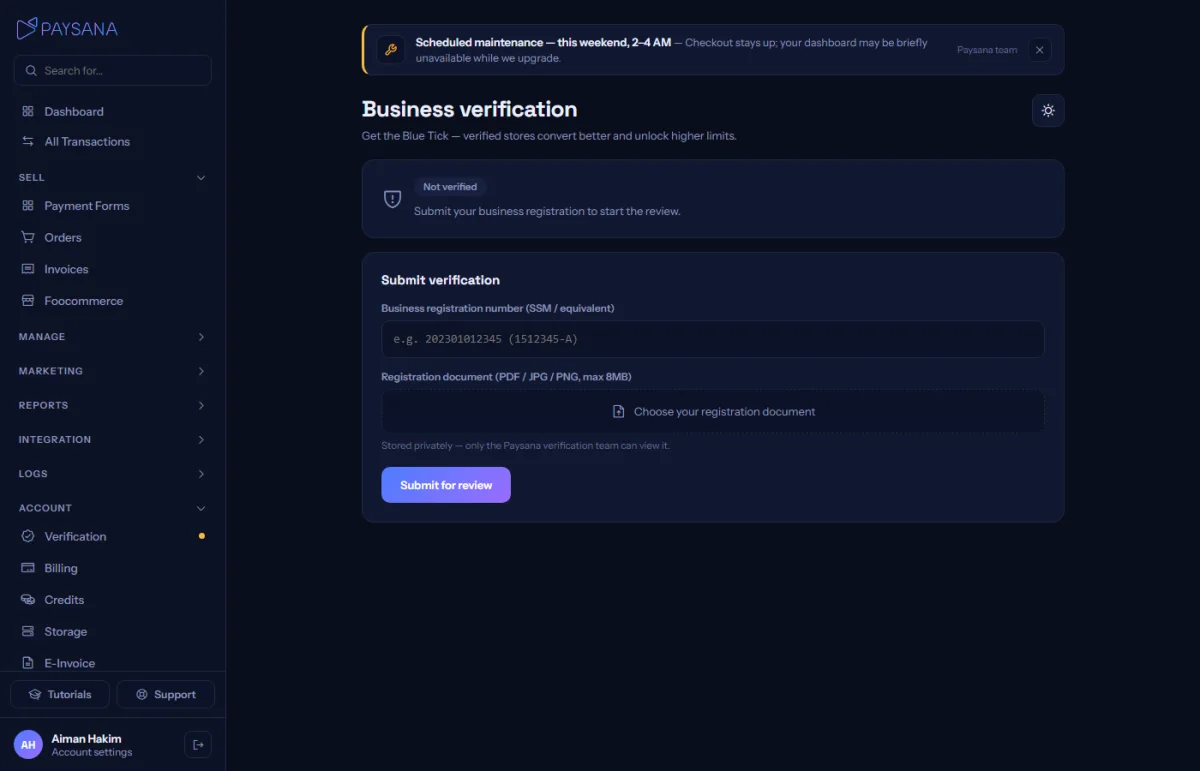
Open Verification

It sits under Account in the sidebar and carries a live status dot, so you can see at a glance whether you have submitted anything.
app.paysana.co
The verification page, showing your current status and what to submit.
2

Submit your details

Your business registration number and a document proving it: a PDF or a photo. It is stored privately, not on any public URL.

3

We review it

Your status moves to under review. You keep selling throughout. Verification is not a gate on taking payments.

4

Resubmit if you need to

If something was wrong you can submit again, and the new document replaces the old one. An already-active account stays active while you do.

Worth knowing

  • Keep your business address in Settings up to date at the same time. It prints on your invoices and receipts and is the pickup address for couriers.

Read next

Still stuck? Send us a message and a person will answer, usually within one working day.
Contact us

Ready to try it?
Start free today.

Join the businesses already using Paysana to collect payments, send invoices and grow.

Free plan forever · No card to sign up · Your own gateway
We use cookies to measure how this site is used and how well our advertising works. They are optional, and the site works exactly the same either way. Read our privacy policy.